
A Real world case
One of the better ways to understand how Playwright works is to use it on a web page. For this part, the Selenium Playground will be used. Please open the website and navigate thru its items to better understand its structure.
Creating a new test file
Create a new test file and save it as test_1.js , with this code:
const pw = require('playwright')
const chai = require('chai')
const expect = chai.expect

let page, browser, context

describe('Selenium Playground Test', function() {
    this.timeout(30000);
    before(async function() {
        browser = await pw.chromium.launch({
          headless: false
        });
        context = await browser.newContext();
        page = await context.newPage('http://leafground.com/')
    })

    after(async function() {
      /*
        await page.close();
        await context.close();
        await browser.close();
       */
    })

    it('Checks the title of the page', async() => {
        await page.goto('http://leafground.com/');
        const title = await page.title();
        expect(title).to.equal('TestLeaf - Selenium Playground')
    })
})
We are using Mocha and Chai libraries. Try the test by executing:
> mocha test1.js
Please notice:
- The timeout setting, which is used to override the default setting of 2000ms and account for the network speed before the test fails.
- The
headless: falseargument on the browser instance, to see that the test is doing - The after callback code is commented, so the test won't close the browser after finishing
You should see the browser in the main page, and the only test marked as a pass.
Navigating to the Edit menu
To simulate user navigation, we want to click the edit menu item from the main page. In order to do that, we have to select it first. One quick way to find out is by right clicking on the desired element and choosing the Inspect or Inspect Element options. The browser will look for the clicked item in the code.
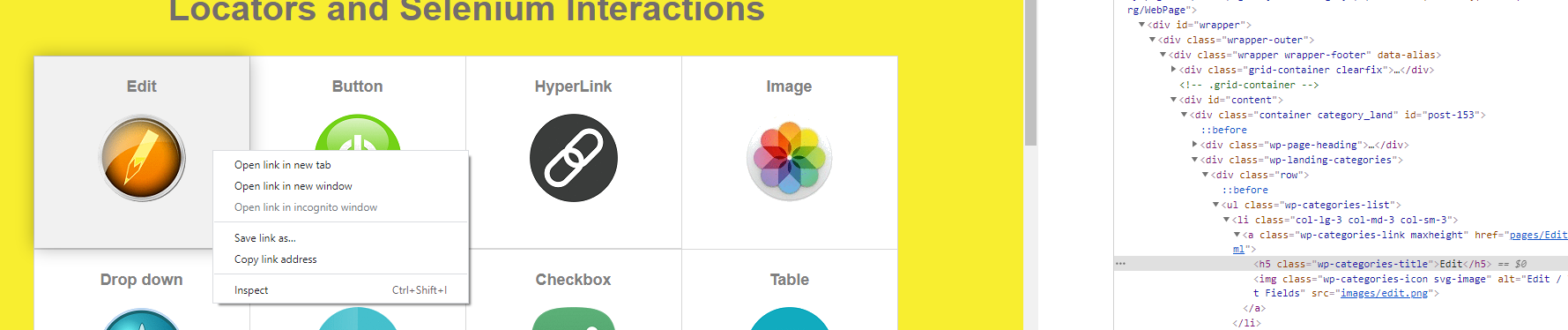
From there, we can see that that item has:
- An "Edit" text inside
- A wp-categories-title class.
Since a "title" class could be used for more than this item, we use a text selector: Please change the code to do this action
const pw = require('playwright')
const chai = require('chai')
const expect = chai.expect

let page, browser, context

describe('Selenium Playground Test', function() {
    this.timeout(30000);
    before(async function() {
        browser = await pw.chromium.launch({
          headless: false
        });
        context = await browser.newContext();
        page = await context.newPage('http://leafground.com/')
    })

    after(async function() {
      /*
        await page.close();
        await context.close();
        await browser.close();
       */
    })

    it('Checks the title of the page', async() => {
        await page.goto('http://leafground.com/');
        const title = await page.title();
        expect(title).to.equal('TestLeaf - Selenium Playground')
    })

    it('Navigates to Edit page', async() => {
        await page.click('text="Edit"');
    })
})
Notice the new function at the end of the file. It will click the item with an 'Edit' text. Please run the new code and check if it works. Don't close the browser yet. You should see the Edit page loaded.
Checking the navigation status
Now, to assert the navigation has worked, we have to check if we are on the correct page. There are many options to do this, and we will choose two of them:
- Checking the Browser URL
- Checking a page item
Asserting the URL
For the first one, we can check the URL has changed to http://leafground.com/pages/Edit.html. We can test this by adding an assertion:
it('Navigate to Edit page', async() => {
    await page.click('text="Edit"');
    expect(page.url()).to.equal('http://leafground.com/pages/Edit.html')
})
Asserting an Item
For the second option, we can check an specific item on the Edit page; if the item is present, then we are on the correct page. Using the inspector, the element that contains the title "Work with Edit Fields", and has a wp-heading CSS class name.
If we modify the function to include one extra validation, we get
    it('Navigate to Edit page', async() => {
        await page.click('text="Edit"');
        await page.waitForSelector('.wp-heading');
        let title = await page.$('.wp-heading')
        let text = await title.textContent();
        expect(page.url()).to.equal('http://leafground.com/pages/Edit.html')
        expect(text).to.match(/Work with Edit Fields/)
    })
Let's review the new code:
- A CSS class selector is created, and saved on the title variable
- Since clicking on the Edit button triggers new content, we should wait for the element to be visible with the waitForSelector function.
- Once we have an item, we extract the text with the element handle's textContent function.
- Finally, we assert that the text matches. On most pages, the rendered text has whitespaces and other non printable characters, so testing against a regular expression is a more robust option.
Next steps
The Edit Fields page have many other inputs. Using the code inspector, try to modify the test to the required actions.